Network diagrams
Any network, on one clear diagram
Place devices and connect them with flow lines, and the picture shows where traffic goes and where, and why, it breaks. Change IP, gateway and DNS settings and learn hands-on how a network behaves.
Free · No install, no sign-up · Your drawings stay in your own browser.
Three steps
-
1
Place and connect devices
Put MFPs, printers, routers, switches and modems on the graph paper and connect them with flow lines. A flow line plugs into a free port like a LAN cable and gets a port tag at each end (WAN, L1, P3). The arrows show which way the data goes.
-
2
Enter settings
Double-click a device to open its card and set the port count, Wi-Fi, IP, gateway, DNS and router mode. Values that fit the connected router are filled in for you.
-
3
Read the flow
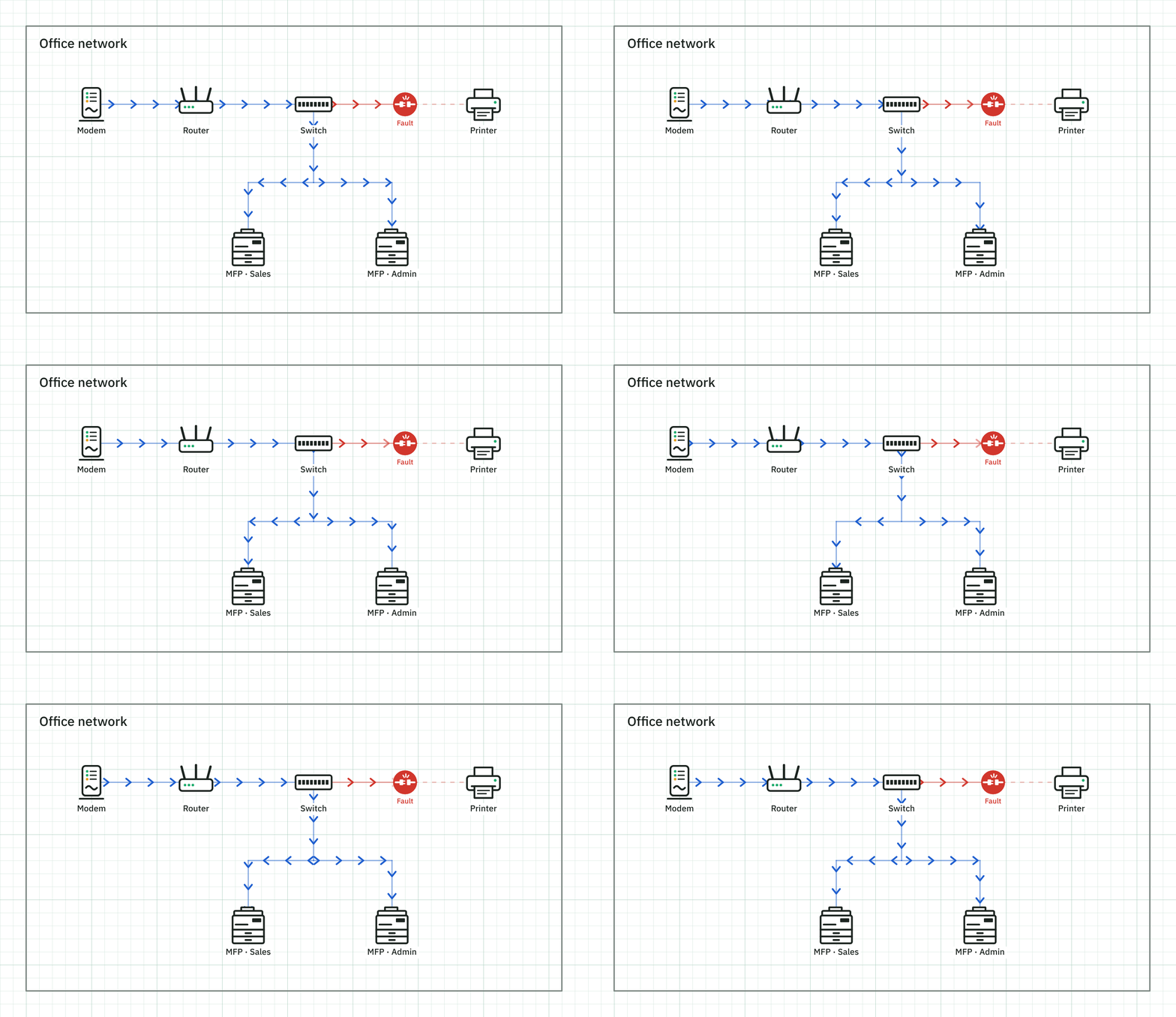
Arrows run where things work, the flow breaks where a setting is wrong, it flickers when two DHCP servers clash, and a loop spins red. Save it as a PNG or GIF and send it.
When it helps
-
Explaining a tricky setup
A router behind a router, double NAT, two DHCP servers: situations that are hard to explain in words fit on one picture.
-
Pointing at the broken part
When an MFP or printer stops responding, a picture of which stretch is down makes the phone call much easier.
-
Learning networking
Enter a wrong gateway or wire flow lines into a ring and see what happens right away, with no risk to real equipment.
Learn networking by changing things
Without touching real equipment, enter wrong settings on purpose and watch what happens.
-
Gateway and subnet
Try thisDouble-click the MFP and enter a gateway that isn't the router's address. The flow to the MFP breaks: to leave its own network, a device has to go through the gateway.
-
DHCP
Try thisSwitch the MFP to automatic (DHCP) and turn off the router's DHCP server. The MFP gets no address and the flow breaks.
-
DNS and outbound traffic
Try thisClear the DNS fields. Printing still flows, but the green dots going from the device out to the internet stop. That's why scan to email and updates fail.
-
Double NAT
Try thisPut a second router under the first and connect it through its WAN port. The internet works, but you are told that PCs on the upper router need port forwarding to reach devices below.
-
AP mode and DHCP conflicts
Try thisIn the lower router's device card, move the upstream flow line to a LAN port and leave it in router mode: now there are two DHCP servers, and the flow flickers orange. Switch to AP mode and turn its DHCP off to fix it.
-
Loops and broadcast storms
Try thisDraw two flow lines the same way between two switches. The two cables form a ring that spins red, and the whole network stops.
What's inside
- Six device icons and flow lines that attach to them: MFP, printer, router, switch, modem, fault
- IP, subnet, gateway and DNS for every device, checked automatically
- Working, broken, unstable and looping flows each drawn their own way
- Outbound (reverse) flow from each device to the internet
- Router behind a router: router and AP modes, WAN and LAN connections
- Reversible flow lines that join into one flow
- Save any area as PNG or GIF, no watermark
- Grid-snapped shapes and text, undo, autosave
- Device card: type, model, port count and Wi-Fi, a double-click away
- Port-to-port wiring with checks for missing ports, WAN/LAN and wireless
FAQ
- Does it cost anything?
- Everything is free, and there's no sign-up. Ads at the side of the page pay for running it.
- Where are my drawings saved?
- In your browser, automatically, and they're never sent anywhere. Other PCs can't see them, so save the ones you need as PNG or GIF.
- Do saved images get a logo?
- No. They're saved exactly as drawn.
- Does it work on phones?
- It's made for a PC with a mouse and keyboard. We recommend drawing on a PC.
- Can I use it if I don't know much about networks?
- Yes. Settings that fit are filled in for you, and anything wrong is explained in plain words.
- Does it change my real devices?
- No. The settings are virtual and live only in Monunnet, so real devices aren't touched. Real equipment varies a little, so treat it as a guide.
Draw your network on one page
It opens with an example diagram, so you can start right away: pick the MFP and change its gateway.
Start drawing